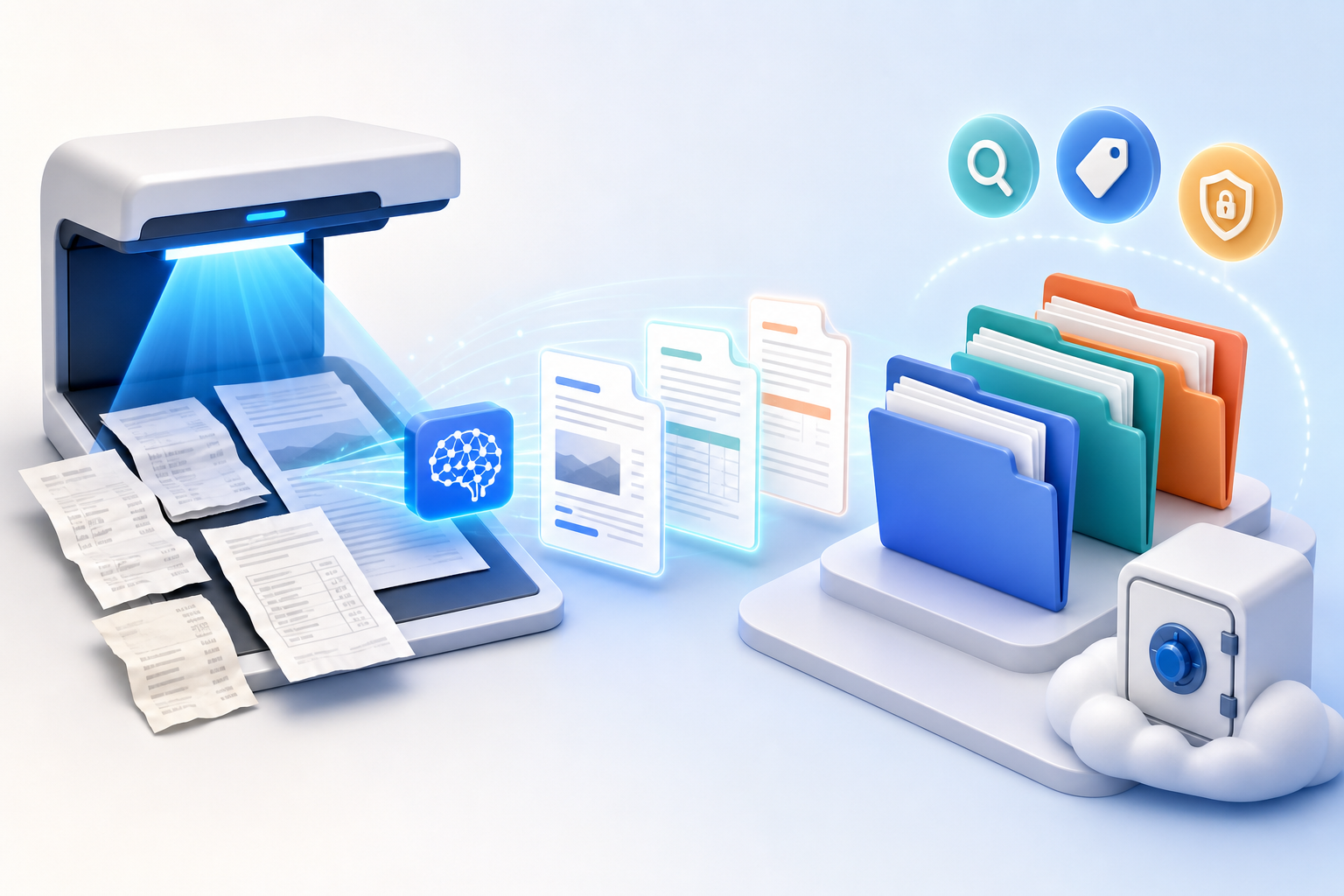
Scanning paper is easy. Finding the right scan six months later is the hard part. Files named “scan0047.pdf” are technically digital but not meaningfully organized. AI document organization improves that archive by reading the page, identifying its type, extracting useful metadata and making the contents searchable.
The technology works best when paired with simple rules. AI can suggest that a file is an invoice from a certain vendor, but your naming convention, folder permissions and retention policy still determine whether the archive remains useful.
What OCR and AI classification actually do
Optical character recognition converts the shapes in an image into machine-readable text. Traditional OCR helps search for exact words. AI extraction goes further by identifying fields and context: a date can become an invoice date, an amount can become a total, and a page can be classified as a receipt, contract or identity record.
Typical automation includes:
- detecting document type and language;
- extracting names, dates, addresses, totals and reference numbers;
- generating filenames and metadata tags;
- routing a document to a folder or approval queue;
- flagging missing pages, duplicates or low-confidence fields;
- enabling natural-language search across the archive.
Step 1: capture clean source pages
OCR accuracy starts with the image. Place the page flat, use even lighting and keep the camera parallel to the document. Avoid fingers, shadows and a busy background. Capture enough resolution for small print, but do not create needlessly huge files.
If pages begin as photos, use Images to PDF or Scanned Images to PDF to create one ordered document. For mixed JPG and PNG sources, the JPG and PNG to PDF tool creates a consistent PDF input.
Step 2: choose the correct document boundary
Do not put an entire filing cabinet into one giant PDF. A document should represent one logical item: one contract, one monthly statement, one expense batch or one case packet. That boundary makes classification, access control and retention easier.
Use Merge PDF when several pages belong to one record. Use Split PDF when a scanner has combined unrelated records. Delete blank separator sheets and confirm the page order before running OCR.
Step 3: use names that humans can understand
A durable filename follows a predictable structure. One useful pattern is:
Example: 2026-07-15_Invoice_Northwind_10482.pdf
Use the ISO-style date so files sort chronologically. Keep the vocabulary controlled: choose “Invoice” or “Bill,” not both. Avoid sensitive details in filenames when filenames may be visible outside the protected folder.
Step 4: let AI suggest metadata, then validate it
Metadata can include owner, department, document type, customer, project, date, status and retention class. Start with a small schema that answers real retrieval questions. Twenty unreliable tags are worse than five consistent ones.
Set confidence thresholds. High-confidence routine files may be filed automatically; ambiguous or sensitive documents should enter a review queue. Always validate fields that drive payments, legal deadlines, identity matching or deletion.
Step 5: build useful search and retrieval
Exact text search is ideal when you know a reference number. Semantic search helps when you remember a concept but not its wording. Filters handle predictable questions such as “all approved invoices for this vendor in Q2.” A strong system offers all three.
Test retrieval with real tasks. Ask a colleague who did not design the folder structure to find ten sample records. If they cannot, improve the metadata and naming rules before scanning thousands more documents.
Step 6: protect the archive
- Give users only the access they need.
- Separate identity, health, payroll and legal records from general team files.
- Enable multifactor authentication and audit logging.
- Define retention and secure deletion rules.
- Keep backups and test restoration.
- Review whether an AI service retains uploads or uses content for training.
Minimize unnecessary uploads during preparation. GoPDFTools performs common PDF operations in the browser, which is useful for organizing pages and reducing file size before a document enters the approved storage or OCR platform.
Example workflow for receipts and records
- Photograph or scan pages with consistent lighting.
- Convert related images into one PDF in the correct order.
- Split mixed batches and remove blank pages.
- Run OCR and extract the vendor, date, total and reference.
- Review low-confidence fields and duplicate warnings.
- Rename the file with the approved pattern.
- Store it in the correct protected location with retention metadata.
- Compress a sharing copy if email or portal limits require it.
Organize the PDF before OCR
Create a clean, ordered input using fast browser-based PDF tools.
Scans to PDFMerge pagesSplit batchesFrequently asked questions
What is the difference between OCR and AI document processing?
OCR converts an image into text. AI document processing can classify the document, interpret fields, apply metadata and trigger a workflow.
Can AI organize scanned PDFs automatically?
Yes, but automatic filing should use confidence thresholds and human review for sensitive or consequential records.
What file format is best for scanned documents?
PDF is practical for multipage records and broad compatibility. Keep an archival-quality original when preservation requirements apply.
How can I organize PDFs without uploading them?
Use browser-based GoPDFTools utilities to merge, split, reorder and compress working files locally, then move the result into your approved archive.