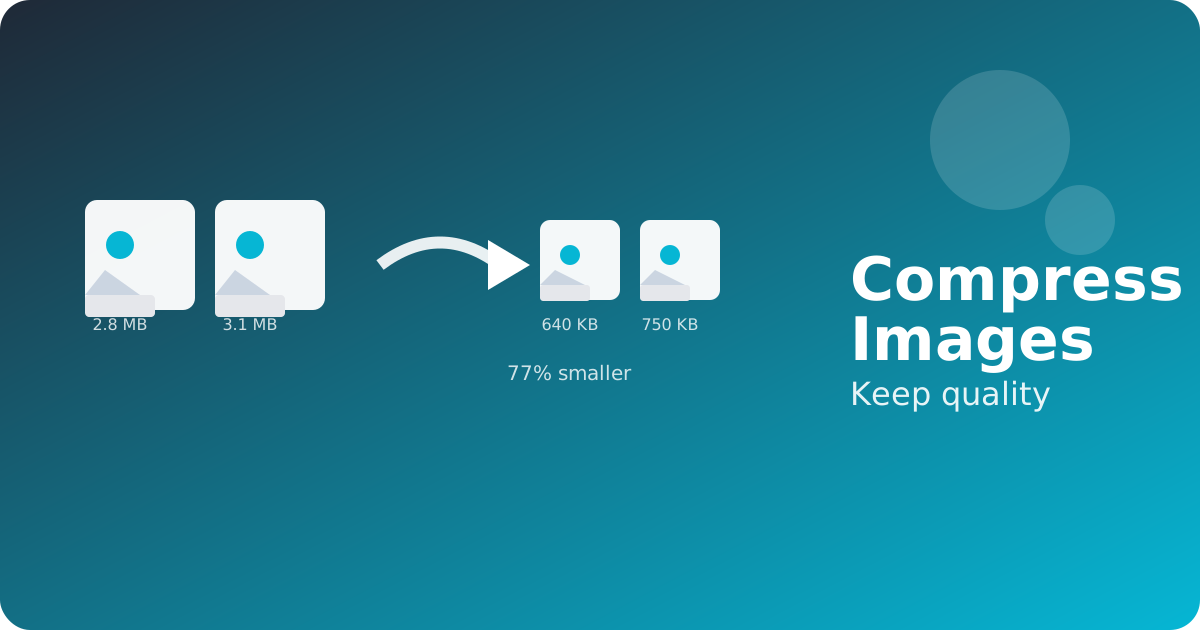
Large image files slow down websites, consume email quota and waste storage space. Compressing images reduces these problems while maintaining the visual quality that matters to viewers. Whether you're optimizing photos for a website, preparing images for email or organizing digital files, smart image compression keeps quality high while slashing file sizes dramatically.
Why image compression matters
Smaller image files load faster on websites, making for better user experience and improved SEO rankings. Email attachments with compressed images send more reliably and reach people with limited connection speeds or small mailboxes. Cloud storage stays affordable when images take less space. Social media uploads finish faster with optimized files. Compression is the key to managing digital photos efficiently without sacrificing what viewers see.
Smart compression vs aggressive compression
Aggressive compression squeezes files down to tiny sizes but can make images look blurry, muddy or artificial. Smart compression finds the sweet spot where file size drops significantly but images still look crisp and clear. Quality settings matter—a website hero image needs different compression than a thumbnail. A photo you'll print needs higher quality than one only viewed on screen.
JPG vs PNG compression approaches
JPG compression works by removing detail that human eyes typically don't notice, making it ideal for photos where massive size reduction is possible. PNG compression rearranges data without removing detail, working best for graphics, screenshots and images with text. Each format handles compression differently, so the right choice depends on your image type. GoPDFTools Image Compressor handles both formats intelligently.
Compression for different use cases
Website images need strong compression for speed but good clarity on desktop and mobile screens. Email attachments benefit from aggressive compression since recipients usually view them once at small sizes. Print-ready images need minimal compression to preserve detail for high-resolution output. Social media images compress heavily since platforms recompress anyway. Know your end use before setting compression levels.
Batch compression workflow
Processing many images individually takes forever. Modern compression tools let you select multiple files at once, apply consistent compression settings and download the entire batch. This saves hours if you're optimizing a photo gallery, processing images from a photo shoot or preparing many screenshots. Batch compression also ensures consistent quality across all images.
Why use GoPDFTools for image compression
GoPDFTools Image Compressor works directly in your browser with privacy-first design. Upload your images, choose compression strength, and download optimized files instantly. Everything stays private—no server storage, no tracking, no account needed. Batch process multiple images, compare before and after sizes, and achieve massive file size reductions while preserving the quality you need.
Try the related GoPDFTools workflow
Optimizing images is faster and easier when you use a tool designed for quality preservation and batch processing.
Related tools: Image Compressor, Images to PDF, Merge PDF
Frequently asked questions
How much will compression reduce my file size?
Results vary by image type and quality settings. Many JPG photos compress 60-80% while maintaining excellent quality. PNG compression varies more depending on image content.
Will compressed images look different on all devices?
Smart compression maintains quality across desktop, tablet and mobile screens. Print quality is reduced more than screen quality depending on compression strength.
Should I compress multiple times for smaller files?
No. Compressing an already-compressed image degrades quality further. Compress once with appropriate settings instead of multiple passes.
Can I compress without losing any quality?
Lossless compression exists but reduces file size less than lossy compression. For web and email, smart lossy compression is the best balance.