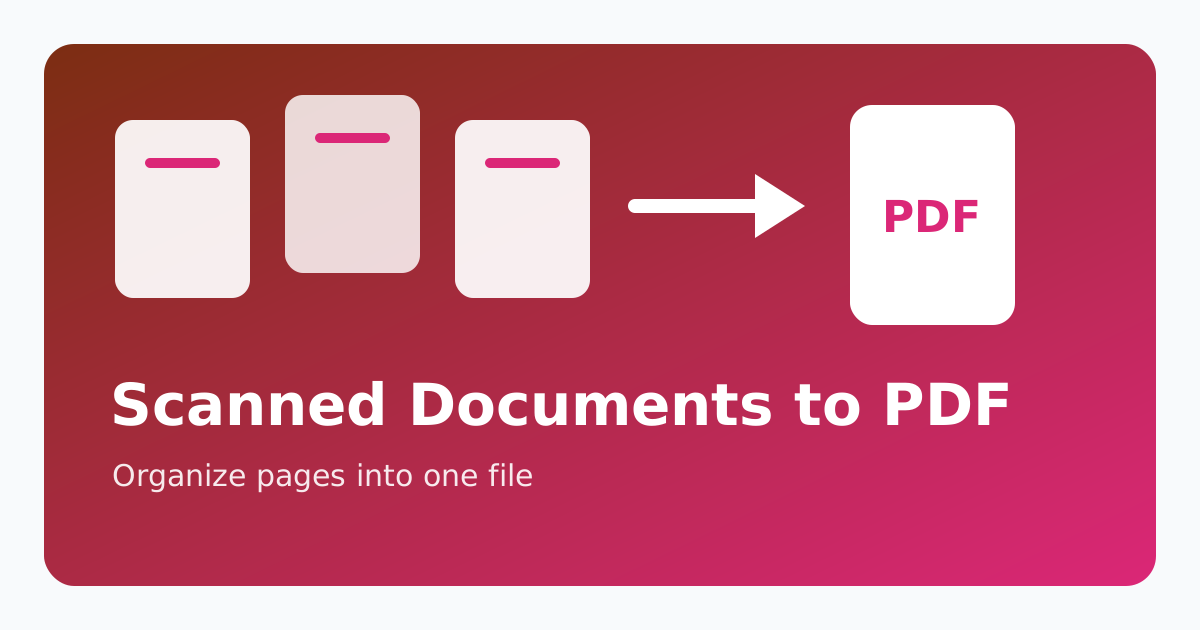
Scanned documents often start as separate image files. You might have one photo for each page of an ID, contract, receipt, application, or handwritten note. Sending those files one by one looks messy and can confuse the person reviewing them. A single organized PDF is usually better.
Start with clear source images
Before creating the PDF, make sure each scan is readable. Retake blurry photos, crop extra background, and keep pages upright. A clean source image produces a cleaner PDF.
Arrange pages before converting
Put the pages in the correct order before generating the PDF. For applications, this usually means main form first, supporting documents next, then optional attachments. A logical order saves reviewers time.
Convert images into one PDF
Use an Images to PDF tool to add all scanned pages, reorder them, and export one PDF. If your files are JPG photos, the JPG to PDF workflow is also a good fit.
Compress if the file is too large
Scanned documents can become large because every page is an image. After creating the PDF, compress it if you need to email it or upload it to a portal with a file-size limit.
Final review checklist
- Every page is readable
- Pages are in the right order
- No duplicate or blank pages remain
- The file name is clear
- The PDF size fits the upload limit
Create one organized PDF
Convert scans and photos into a clean PDF before sharing or submitting.
Related tools: Images to PDF, JPG to PDF, Compress PDF
Frequently asked questions
Can I use phone photos as scanned pages?
Yes. Make sure the photos are sharp, bright, and cropped before converting.
Should every scan be a separate PDF?
No. If pages belong together, one combined PDF is usually easier to review.
Why is my scanned PDF so large?
Scanned PDFs are image-heavy. Compressing the final PDF usually helps.